Publiceer een Notion Site
Oeps! Het lijkt erop dat je advertentieblokkering het afspelen van de video verhindert.
Bekijk het op YouTube
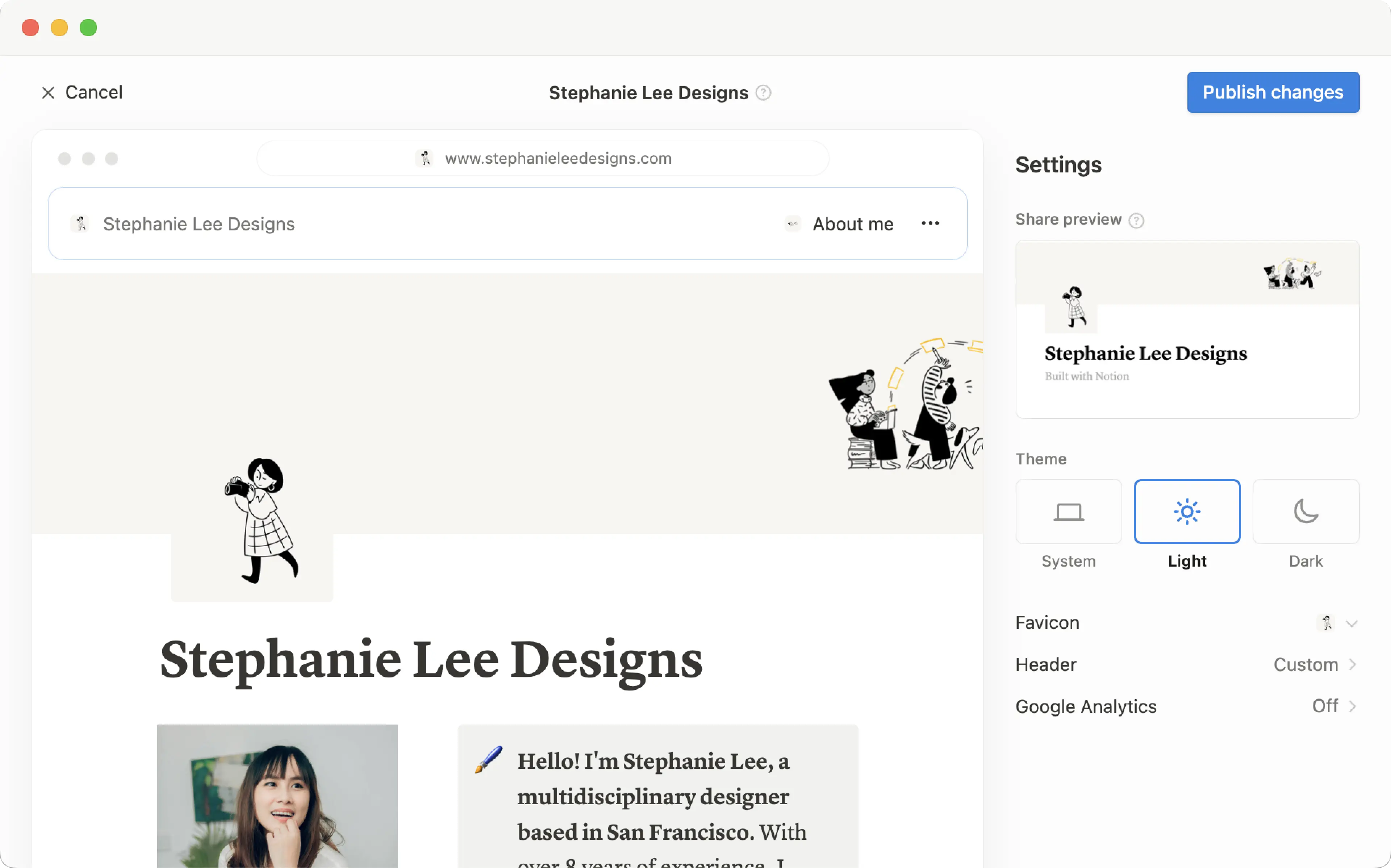
Elke pagina die je in Notion bouwt, kan met slechts één klik worden veranderd in een prachtige Notion Site. Publiceer een blog, cv of portfolio, vacature of landingspagina — de mogelijkheden zijn net zo groot als het web zelf 🪄
Ga naar Veelgestelde vragenMet Notion Sites kun je:
Publiceer een onbeperkt aantal pagina's online.
Als je een betaald Abonnement hebt, ontgrendel je ook extra aanpassingsmogelijkheden voor je Site, waaronder zoekmachineoptimalisatie, thema's, integratie met Google Analytics en meer. Je hebt ook de mogelijkheid om een add-on aan te schaffen om je bestaande aangepaste domeinen met Sites te gebruiken, en meer.
Lees meer over de beschikbaarheid en prijzen van de Notion Sites-functie hier →

Note:
Making a Notion page public via Notion Sites is different from making a Notion page public using the
Anyone on the web with linksetting in a page’sSharemenu. Learn more about this general access setting here →Workspace owners on the Enterprise Plan can choose to prevent Notion Sites from being published. Learn how here →
Een Notion Site publiceren:
Open de pagina die je wilt publiceren en selecteer
Delenbovenaan.Open het tabblad
Publiceren.Selecteer
Publiceren.
Selecteer Site bekijken om je Notion Site live op het web te zien! Wanneer je wijzigingen aanbrengt in de content van een gepubliceerde Notion pagina, wordt de Site automatisch bijgewerkt.
Maak je Site insluitbaar
Sluit al je gepubliceerde Notion pagina's — Formulieren, diagrammen, databases en meer — in op je websites die niet in Notion zijn gemaakt.
Klik op een gepubliceerde pagina op
Deze pagina insluiten.Klik in het dialoogvenster voor Insluiten op
Deze code kopiëren.Je kunt optioneel
Paginatitel weergeventoggelen.
Plak de code in het HTML-bestand van je website. Als je een websitebouwer gebruikt, is dit waarschijnlijk een codeblok.

Note: Publishing a Notion page to the web means all of its subpages will be published too. Make sure all your page’s subpages are good to go before you hit publish!

Learn how to build a beautiful, ready-to-publish Notion Site here →
Zodra je Notion Site is gepubliceerd, open je de gepubliceerde pagina in Notion en selecteer je Delen bovenaan → Publiceren. Vanuit dit menu kun je:
Kopieer de link naar je live Notion Site zodat je deze met anderen kunt delen.
Als je een betaald Abonnement hebt, kun je de slug van je Notion Site aanpassen; dit is het pad dat achter je domein komt. Bijvoorbeeld, in de URL
notion.site/my-slug, zoumy-slugde slug zijn. Om dit aan te passen, klik je op je huidige slug, voer je de gewenste slug in en klik je opOpslaan.Slugs kunnen bestaan uit letters, cijfers en koppeltekens. Geen andere speciale tekens zijn toegestaan.
Je slug kan maximaal 60 tekens bevatten.
Startpagina's kunnen geen slugs hebben.
Je moet slugs handmatig instellen voor elk van je Notion Sites. De slug van een specifieke pagina wordt niet automatisch toegepast op subpagina's.
Je kunt niet dezelfde slug gebruiken voor verschillende pagina's in een workspace, zelfs niet als die pagina's op verschillende domeinen zijn gepubliceerd.

Important: Once you permanently delete a published page, its slug cannot be reused. If you think you might want to use the same slug again, update the slug before deleting the page.
Selecteer
Site-aanpassingom je site verder te personaliseren. Lees meer over het aanpassen van je site in dit artikel →Selecteer
Zoekmachine-indexeringen schakelVindbaar op het webin om je site doorzoekbaar te maken op het web. Als je een betaald Abonnement hebt, kun je ook de linktitel en beschrijving bewerken voor zoekmachineoptimalisatie.Schakel
Dupliceren als sjabloonin om sitebezoekers in staat te stellen je Notion Site te dupliceren als een Notion pagina in hun eigen workspace.Selecteer
Deze pagina insluitenen schakelPaginatitel weergevenin of selecteerCode kopiërenom je Notion Site in een andere pagina in te sluiten.Beheer al je sites door
Alle gepubliceerde siteste selecteren.
Note:
Notion Sites can take up to four weeks to be indexed and appear in search results.
If you choose to sell templates directly on Marketplace, your existing paid templates (at their existing Notion Sites links) will be made available for purchase directly on Marketplace. This means that users who access your templates' existing Notion Sites links via a third-party platform won’t be able to duplicate your templates. Make sure to duplicate your template and set it up at a new Notion Site link that you can use for your listing on the third-party platform.
Note: When you publish a Notion page to the web or set sharing access for a Notion page to Anyone on the web with link, the webpage's metadata will include the names, profile photos, and email addresses associated with any Notion users that have contributed to the page.
Wanneer je een Notion Site publiceert:
Iedereen op het web kan deze bekijken.
Subpagina's worden standaard ook gepubliceerd, samen met al hun subpagina's. Je kunt de machtigingen voor subpagina's beperken om ze te verbergen voor openbare weergave!
Als je Notion Site een database bevat, kunnen kijkers schakelen tussen weergaven en de pagina's daarin openen.
Afhankelijk van de instellingen die je hebt ingeschakeld en de aanpassingen die je maakt, kunnen kijkers je site ook dupliceren of doorzoeken.
Terwijl je wijzigingen aanbrengt in de content van je Notion pagina, wordt de Site automatisch bijgewerkt.
If you’re on a paid plan, you can do even more to tailor the experience for your Site’s visitors! Learn how in this article →
Even if your Notion Site has been unpublished, it’s possible your page’s general access settings have been set to Anyone on the web with link, which allows people who have the link to your page to access it.
To ensure your page’s contents aren’t shared publicly, turn this setting off by clicking Share at the top of your Notion page, opening the dropdown next to Anyone on the web with link, and clicking Remove.
Om je Notion Site van het web te halen:
Open de pagina waarvan je de publicatie ongedaan wilt maken / verwijderen en selecteer
Delenbovenaan.Open het tabblad
Publiceren.Selecteer
Publicatie ongedaan maken / verwijderen.
Als je een workspace-eigenaar bent met een Enterprise-abonnement, kun je voorkomen dat workspace-leden Notion Sites publiceren. Om dit te doen, kunnen workspace-eigenaren:
Ga naar
Instellingen→Beveiliging.Schakel in het tabblad
Beveiligingde optiePubliceren van sites, Formulieren en openbare links uitschakelenin.
Alle sites die al live op het web staan, worden offline gehaald zodra je deze instelling inschakelt. Let op: als je deze instelling inschakelt, kunnen leden van je workspace ook geen Formulieren meer op het web delen.

Veelgestelde vragen
Does Notion support custom domains?
Does Notion support custom domains?
Learn how to claim a notion.site domain or connect a custom domain to your Notion Site here →
Can you link to a specific section of a page?
Can you link to a specific section of a page?
You can use a table of contents in your public page to create anchor links to its headings.
If I change my workspace domain name, will my public page URLs still work?
If I change my workspace domain name, will my public page URLs still work?
If you change your workspace domain, any existing links starting with the previous domain will no longer work. You'll need to share the new link. To find the new link, open the published page in Notion and select Share at the top → Publish. Find the URL at the top and select 🔗 next to it to copy it.
I shared my public page URL but it takes people to a page with a "Continue to external site by following the link below" error message. What did I do wrong?
I shared my public page URL but it takes people to a page with a "Continue to external site by following the link below" error message. What did I do wrong?
Make sure you’ve shared the link to the published page, and not the version of the page in your Notion workspace! The link should begin with your Notion workspace domain name. To find it, open the published page in Notion and select Share at the top → Publish. Find the URL at the top and select 🔗 next to it to copy it.
Can I password protect a page?
Can I password protect a page?
Unfortunately, not at the moment. If the person you want to share a page with has a Notion account, you can share your page privately by selecting Invite a person in the Share menu at the top of a page.