Intro to workspaces
Si è verificato un problema. Sembra che il tuo ad blocker stia impedendo la riproduzione del video.
Guardalo su YouTube

Everything you do in Notion takes place in a workspace. It's your virtual home to organize information and create exactly the way you want — as just one person, together as a team, or across a whole company. Expand, edit, and mold it to fit your needs.
Vai alle Domande frequentiYour Notion app interface is split into two sections: the sidebar and the editor.
Sidebar
Notion's expandable sidebar is your navigation system.
All the pages and databases you create will appear here.
The sidebar contains several sections, which you can reorder and customize.
You can nest pages inside each other for infinite levels of organization.
It's also home to your settings, trash, and other tools.
Learn more about your sidebar in this article →
Editor
This is where all the content you create lives.
Control menus are at the top (we'll go through those in more detail), but otherwise, Notion's editor is a blank canvas for you to write, plan, brainstorm, and more.
You'll notice that as soon as you start typing in this space, those top menus fade into the background, leaving you with your thoughts in a spacious zone of focus.
Control panel
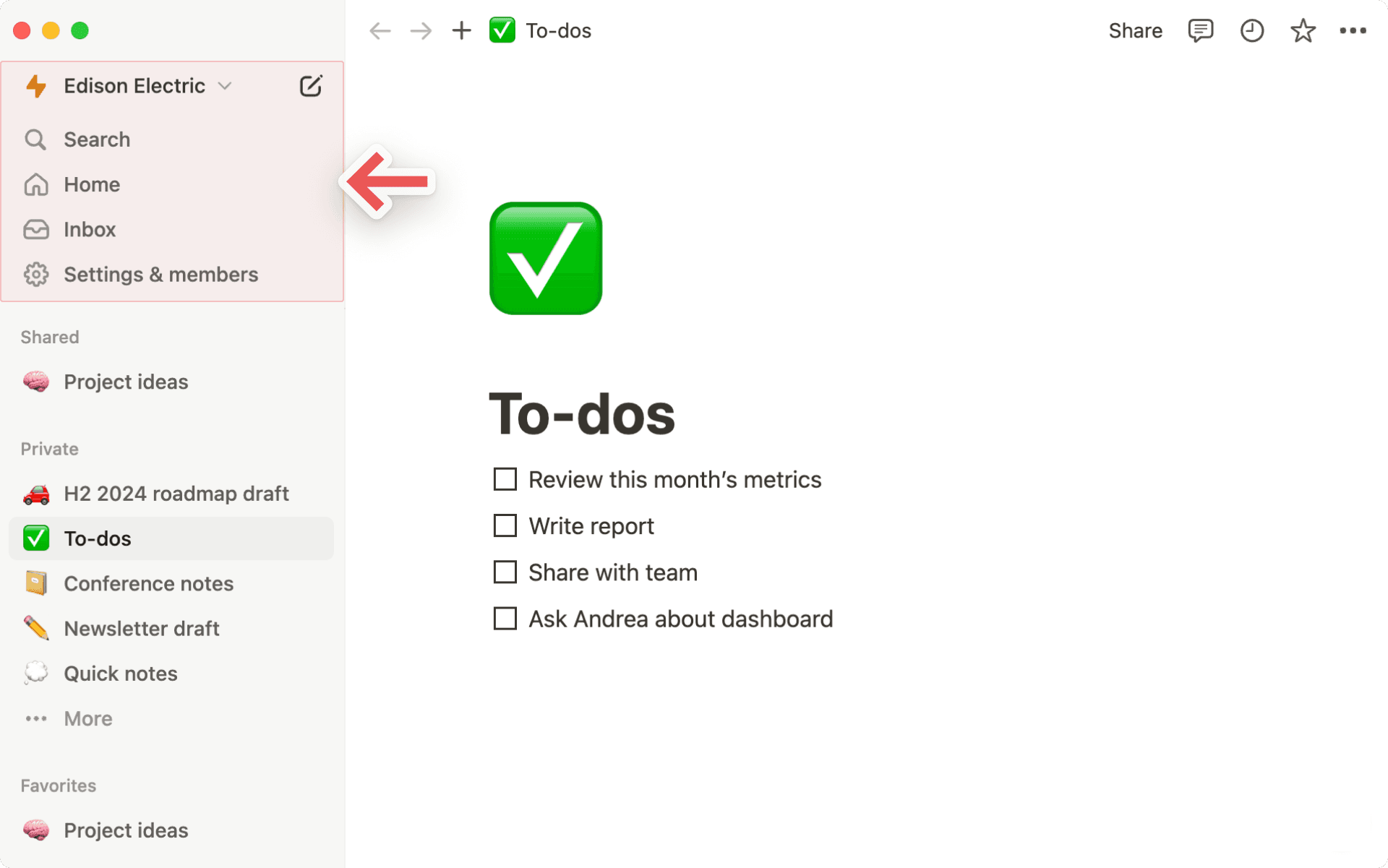
The control panel at the top of your sidebar contains several key features:
Workspace switcher: Click on your current workspace's name to switch between the workspaces you belong to, create a new one, join another one, or log out. You can also access your settings from inside the workspace switcher. Learn more about switching workspaces here →
Search: Click to open Notion's search window, where you can either type in what you're looking for or quickly jump to a recently visited page. Learn more about Search here →
Home: Click to see the pages and tasks that need your attention. Learn more about Home here →
Meetings: Click to see upcoming meetings and notes so you can quickly prep for a meeting, or review what happened after.
Notion AI:Click to search and research with Notion AI. Learn more about Notion AI here →
Inbox: Click to see all your notifications in one place. This menu combines revisions that were made on pages you follow, mentions of you across your workspace, and new work assignments. A red notification badge will appear here when you have unread notifications. Learn more about inbox here →
Library: Click to browse and manage all content across your workspace. Learn more about Library here →
Sidebar sections

Your sidebar contains various sections to keep your workspace’s content organized:
Teamspace: This section is accessible for users on paid plans to manage the various teams or groups that may be working in Notion. Learn more about teamspaces here →
Shared: This section contains pages that you and select others in your workspace have access to.
Private: This section is home to pages that only you have access to.
Favorites: This section houses pages that you’ve favorited so you can reference them easily.
You can rearrange and customize your sidebar sections. Learn how in this article →

Suggerimento:
Fai clic sul nome di una sezione della barra laterale —
Teamspace,CondivisioPrivati— per ridurla e mantenere la barra laterale ordinata e pulita.Fai clic e trascina le sezioni della barra laterale per riorganizzarle.

Note: If you drag a page into Private in your sidebar, everyone but you will lose access.
Favorites
Favorites is where you can easily access all of the pages most important to you. This section will appear in your sidebar once you favorite your first page.
To add a page to your favorites, navigate to it, then click ⭐ at the top of it. You'll see it appear under Favorites in your sidebar.
To remove a page from your favorites, open it and unclick ⭐ at the top. You can also hover over the page in your sidebar and click •••. You'll see the option to Remove from Favorites.
Tip: Favorites are helpful for stashing pages relevant to your current projects. You can easily add or remove them as your workflow and priorities change.
Settings, templates, and trash
Settingsallow you to adjust Notion to your preference. Learn more about settings here →Marketplaceopens our template picker, where you can create a new page using starter content to help you accomplish your goals.Trashcontains all the pages you delete. You can drag and drop them in here. You can also click on trash to search, view, and restore these pages.
Create a new page
There are a few ways to add a new page in Notion.
Click
📝at the top of your left sidebar.If you’re on the desktop app, use the shortcut
cmd/ctrl+N.If you’re on mobile, tap
📝at the bottom of your screen.
Hover options
When you hover over a page in your sidebar, you'll see both a + button to add a page nested inside it, and a ••• icon, which opens a menu of actions you can apply to the page: Delete, Duplicate, Copy link, Rename, and Move to.
Breadcrumb navigation
Always know where you are in respect to your page structure. See how the page you're currently looking at fits into other pages.
You can click on any page in this breadcrumb to immediately jump to it. Sometimes this will be abridged with a
...— click to view all the pages in between.

Collaborators
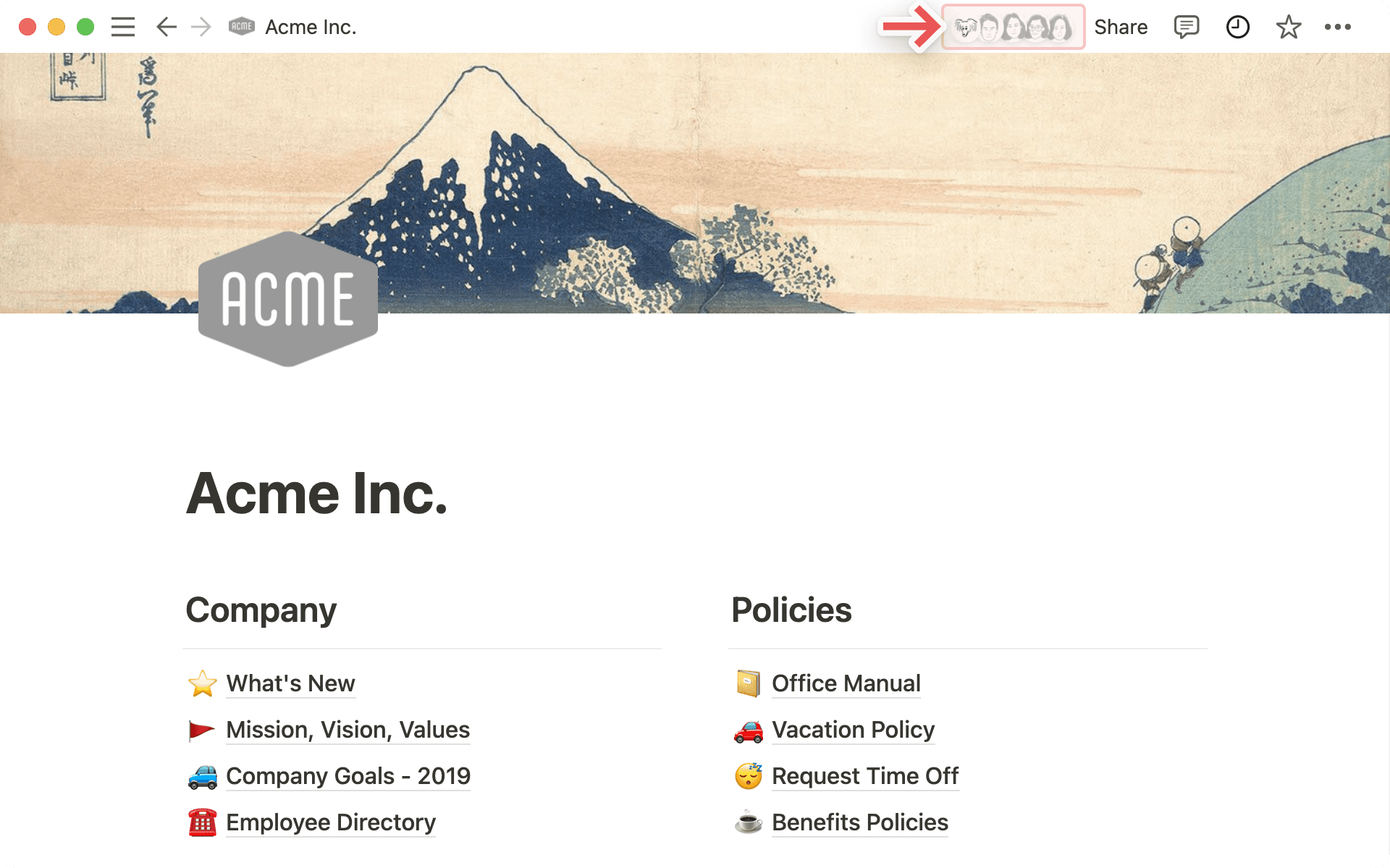
You can see the profile photos of everyone else who has access to the page you're on. If you hover over any of them, you can see the full list, their names, and email addresses.
Greyed out avatars are people who are not currently viewing the page but have access to it.
When you collaborate in real-time on the same content, you can see people's photos moving around, corresponding to the block they're reading or editing.
Share menu

Each row in this menu represents a different person or group of people you can share the page with. The dropdown menus on the right let you set their level of access. Learn more about permissions here →
Copy linkcopies the page's unique URL to your clipboard so you can share it with whoever you want. Still, only people with access to the page can see it.Invitelets you add people both inside or outside your workspace to a page using their email address. Learn more about sharing here →
••• menu
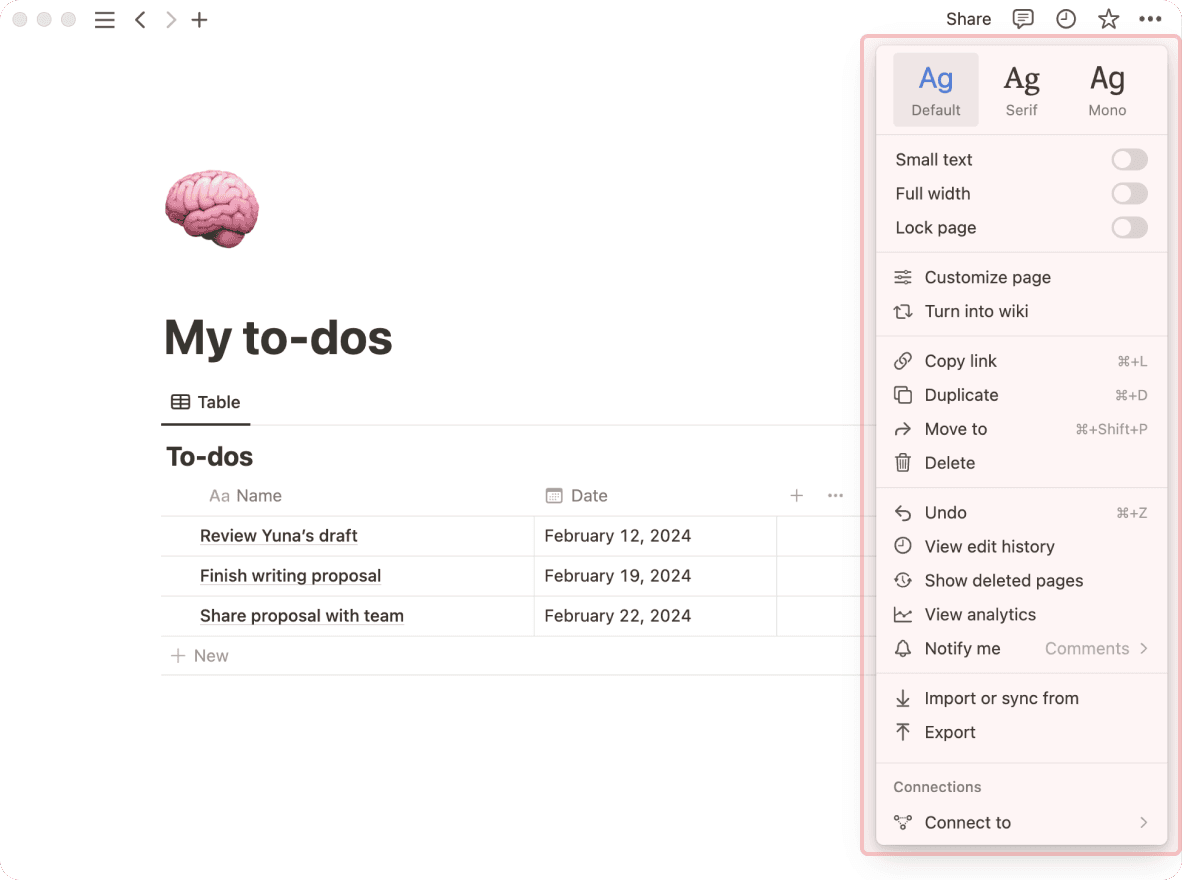
This menu contains many options, including:
Lock page: Turn this on to prevent any edits from being made. This is good for preventing accidental edits on very important pages.Lock database: This option is only available for full page databases. When you turn this on, people can still enter data, but they can’t change views or properties.Customize page: Toggle the visibility of backlink and page comment sections.Move to: This opens up a menu where you can choose any other workspace or page to move the current page into.Updates & analytics: See what changes have been made to a page, how many times the page has been viewed, who created the page, and more.Version history: View past versions of the page going back several days, depending on what plan you're on.Import or sync from: You can add documents and data from a number of other apps (Evernote, Trello, Google Docs, etc.) to the page.Export: Download the page as a file to your computer. Databases get saved as CSV files, while non-database pages get saved as Markdown files. You can also export your page or database as PDF or HTML.
A workspace operates slightly differently if you're using it with a team than if you're using it on your own:
In personal workspaces, newly created pages will be private by default unless they're explicitly shared.
Sidebar organization under the
Teamspacesection is also viewable by all members. The page arrangement will look the same to everyone, although individuals can toggle different pages open or closed without affecting everyone's view.On Notion's Plus, Business, or Enterprise Plan, there are members and admins with different levels of permission. Learn more about sharing and permissions here →
Domande frequenti
Posso passare da uno spazio di lavoro all'altro associato a indirizzi email diversi?
Posso passare da uno spazio di lavoro all'altro associato a indirizzi email diversi?
Per aggiungere i tuoi spazi di lavoro da un altro account email, usa il pulsante Aggiungi un altro account nel selettore dello spazio di lavoro in alto a sinistra nella finestra di Notion e segui i passaggi per accedere all'altro account. Maggiori informazioni qui →
Ho fatto clic sul pulsante 'Crea o unisciti allo spazio di lavoro', ma mi permette solo di creare uno spazio di lavoro. Come faccio a unirmi a uno spazio di lavoro?
Ho fatto clic sul pulsante 'Crea o unisciti allo spazio di lavoro', ma mi permette solo di creare uno spazio di lavoro. Come faccio a unirmi a uno spazio di lavoro?
Puoi unirti a uno spazio di lavoro tramite il pulsante Crea o unisciti allo spazio di lavoro solo se in esso è abilitata l'impostazione Domini email autorizzati, che consente agli utenti con il tuo dominio email di unirsi automaticamente allo spazio di lavoro.
Per unirti a uno spazio di lavoro, dovrai chiedere a un amministratore di quello spazio di lavoro di invitarti.
Per aggiungere i tuoi spazi di lavoro da un altro account email, usa il pulsante Aggiungi un altro account nel selettore dello spazio di lavoro in alto a sinistra nella finestra di Notion e segui i passaggi per accedere all'altro account. Maggiori informazioni qui →
La mia barra laterale non ha sezioni. Come faccio ad attivarle?
La mia barra laterale non ha sezioni. Come faccio ad attivarle?
Le sezioni della barra laterale riflettono le impostazioni di condivisione del tuo account. Se nel tuo spazio di lavoro è presente più di una persona, nella barra laterale apparirà una sezione Teamspace per il lavoro collaborativo, mentre la sezione Privato sarà destinata alle tue pagine personali visibili solo a te.
Quando sottoscrivo un piano Plus, copre tutti i miei spazi di lavoro?
Quando sottoscrivo un piano Plus, copre tutti i miei spazi di lavoro?
I piani a pagamento si applicano solo a uno spazio di lavoro e non coprono l'intero account. Gli spazi di lavoro sono completamente separati, quindi non sarai in grado di collegare alcun contenuto tra loro.
Consigliamo di utilizzare il minor numero possibile di spazi di lavoro e di sfruttare le pagine principali nella barra laterale per rimanere organizzati.
Come posso migrare tutti i miei contenuti Notion in uno spazio di lavoro diverso?
Come posso migrare tutti i miei contenuti Notion in uno spazio di lavoro diverso?
Nota: Qualsiasi contenuto migrato verrà duplicato nel nuovo spazio di lavoro e queste pagine a volte presentano problemi. Per ulteriori informazioni, fai clic qui.
Per spostare i tuoi contenuti da uno spazio di lavoro a un altro associato allo stesso account, fai clic su ••• accanto a ciascuna delle pagine principali nella barra laterale (o fai clic con il tasto destro) e seleziona Sposta in. In fondo al menu di spostamento, vedrai un menu a discesa per selezionare uno spazio di lavoro diverso.
Quando sposti pagine principali, tutte le loro sottopagine le seguiranno. Appariranno nella sezione Privato ma potranno essere spostate ovunque tu voglia metterle.
Cosa succede se ho eliminato accidentalmente qualcosa in modo permanente? C'è un modo per recuperarlo?
Cosa succede se ho eliminato accidentalmente qualcosa in modo permanente? C'è un modo per recuperarlo?
Se elimini accidentalmente una pagina, uno spazio di lavoro o persino l'intero account, possiamo aiutarti! Gli incidenti capitano 😅 Inviaci un messaggio nell'app facendo clic su ? nella parte inferiore della barra laterale, oppure inviaci un'email a [email protected].
Manteniamo dei backup del nostro database, il che ci consente di ripristinare un'istantanea dei tuoi contenuti negli ultimi 30 giorni, se necessario.
Come faccio a disconnettermi dal mio account Notion?
Come faccio a disconnettermi dal mio account Notion?
Fai clic sul nome del tuo spazio di lavoro attuale in alto a sinistra nella barra laterale. Scorri fino in fondo e vedrai l'opzione per Log out accanto al tuo indirizzo email.