Intro to workspaces

Everything you do in Notion takes place in a workspace. It's your virtual home to organize information and create exactly the way you want — as just one person, together as a team, or across a whole company. Expand, edit, and mold it to fit your needs.
Buka Pertanyaan UmumYour Notion app interface is split into two sections: the sidebar and the editor.
Sidebar
Notion's expandable sidebar is your navigation system.
All the pages and databases you create will appear here.
The sidebar contains several sections, which you can reorder and customize.
You can nest pages inside each other for infinite levels of organization.
It's also home to your settings, trash, and other tools.
Learn more about your sidebar in this article →
Editor
This is where all the content you create lives.
Control menus are at the top (we'll go through those in more detail), but otherwise, Notion's editor is a blank canvas for you to write, plan, brainstorm, and more.
You'll notice that as soon as you start typing in this space, those top menus fade into the background, leaving you with your thoughts in a spacious zone of focus.
Control panel
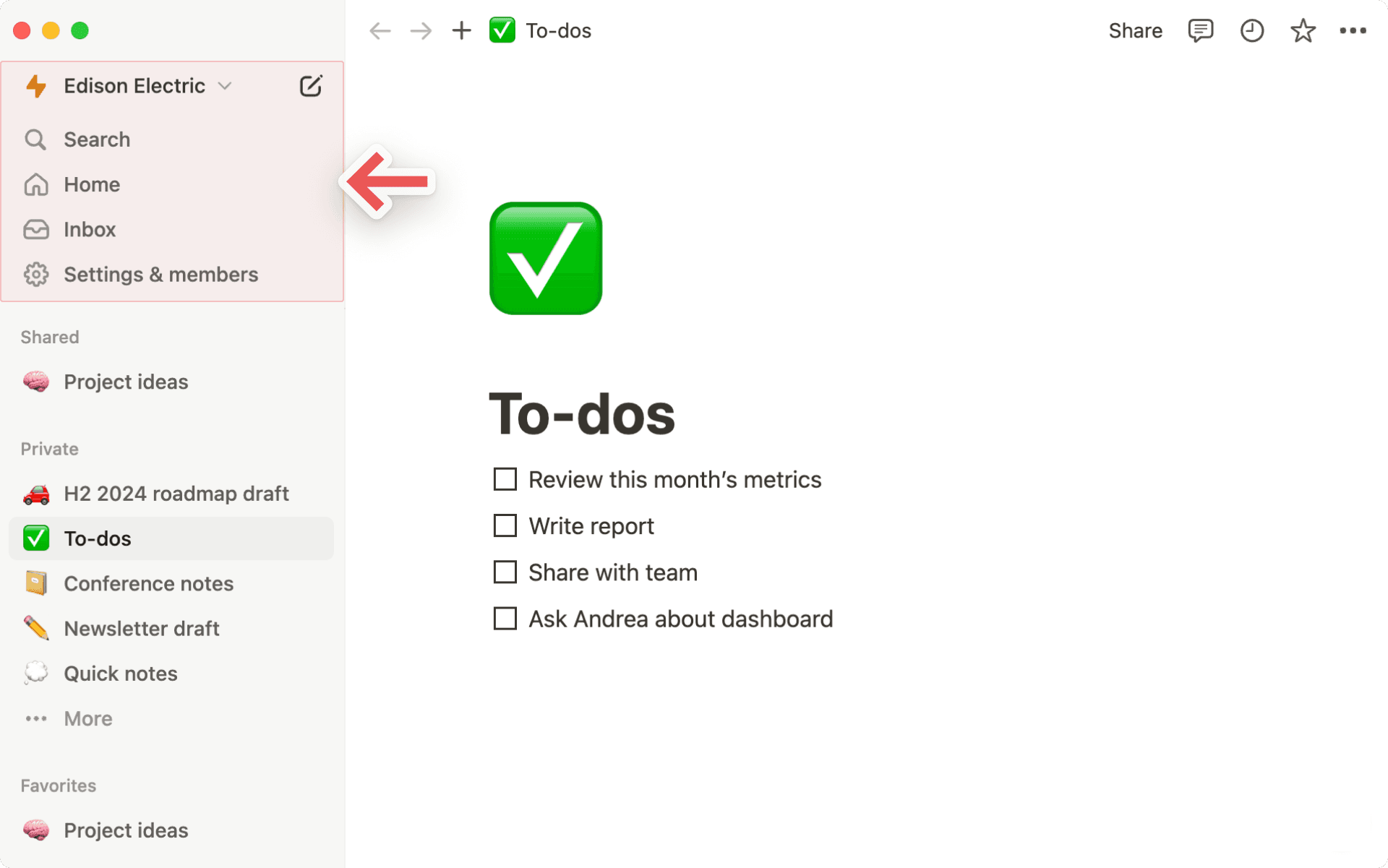
The control panel at the top of your sidebar contains several key features:
Workspace switcher: Click on your current workspace's name to switch between the workspaces you belong to, create a new one, join another one, or log out. You can also access your settings from inside the workspace switcher. Learn more about switching workspaces here →
Search: Click to open Notion's search window, where you can either type in what you're looking for or quickly jump to a recently visited page. Learn more about Search here →
Home: Click to see the pages and tasks that need your attention. Learn more about Home here →
Meetings: Click to see upcoming meetings and notes so you can quickly prep for a meeting, or review what happened after.
Notion AI:Click to search and research with Notion AI. Learn more about Notion AI here →
Inbox: Click to see all your notifications in one place. This menu combines revisions that were made on pages you follow, mentions of you across your workspace, and new work assignments. A red notification badge will appear here when you have unread notifications. Learn more about inbox here →
Library: Click to browse and manage all content across your workspace. Learn more about Library here →
Sidebar sections

Your sidebar contains various sections to keep your workspace’s content organized:
Teamspace: This section is accessible for users on paid plans to manage the various teams or groups that may be working in Notion. Learn more about teamspaces here →
Shared: This section contains pages that you and select others in your workspace have access to.
Private: This section is home to pages that only you have access to.
Favorites: This section houses pages that you’ve favorited so you can reference them easily.
You can rearrange and customize your sidebar sections. Learn how in this article →

Kiat:
Klik nama bagian bilah sisi —
Ruang tim,Dibagikan, atauPribadi— untuk menciutkannya dan menjaga bilah sisi Anda tetap rapi dan bersih.Klik dan seret bagian bilah sisi Anda untuk mengatur ulang posisinya.

Note: If you drag a page into Private in your sidebar, everyone but you will lose access.
Favorites
Favorites is where you can easily access all of the pages most important to you. This section will appear in your sidebar once you favorite your first page.
To add a page to your favorites, navigate to it, then click ⭐ at the top of it. You'll see it appear under Favorites in your sidebar.
To remove a page from your favorites, open it and unclick ⭐ at the top. You can also hover over the page in your sidebar and click •••. You'll see the option to Remove from Favorites.
Tip: Favorites are helpful for stashing pages relevant to your current projects. You can easily add or remove them as your workflow and priorities change.
Settings, templates, and trash
Settingsallow you to adjust Notion to your preference. Learn more about settings here →Marketplaceopens our template picker, where you can create a new page using starter content to help you accomplish your goals.Trashcontains all the pages you delete. You can drag and drop them in here. You can also click on trash to search, view, and restore these pages.
Create a new page
There are a few ways to add a new page in Notion.
Click
📝at the top of your left sidebar.If you’re on the desktop app, use the shortcut
cmd/ctrl+N.If you’re on mobile, tap
📝at the bottom of your screen.
Hover options
When you hover over a page in your sidebar, you'll see both a + button to add a page nested inside it, and a ••• icon, which opens a menu of actions you can apply to the page: Delete, Duplicate, Copy link, Rename, and Move to.
Breadcrumb navigation
Always know where you are in respect to your page structure. See how the page you're currently looking at fits into other pages.
You can click on any page in this breadcrumb to immediately jump to it. Sometimes this will be abridged with a
...— click to view all the pages in between.

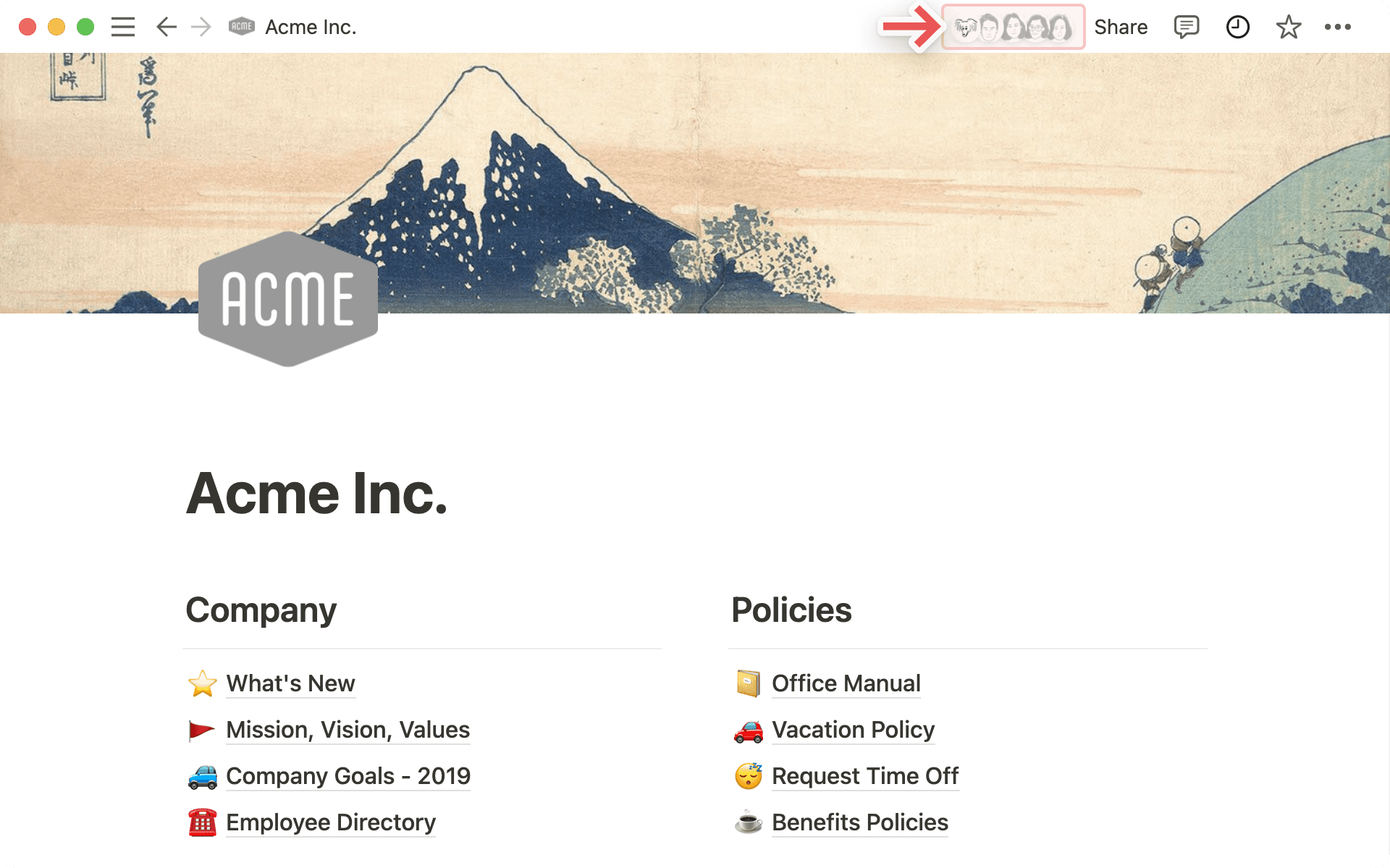
Collaborators
You can see the profile photos of everyone else who has access to the page you're on. If you hover over any of them, you can see the full list, their names, and email addresses.
Greyed out avatars are people who are not currently viewing the page but have access to it.
When you collaborate in real-time on the same content, you can see people's photos moving around, corresponding to the block they're reading or editing.
Share menu

Each row in this menu represents a different person or group of people you can share the page with. The dropdown menus on the right let you set their level of access. Learn more about permissions here →
Copy linkcopies the page's unique URL to your clipboard so you can share it with whoever you want. Still, only people with access to the page can see it.Invitelets you add people both inside or outside your workspace to a page using their email address. Learn more about sharing here →
••• menu
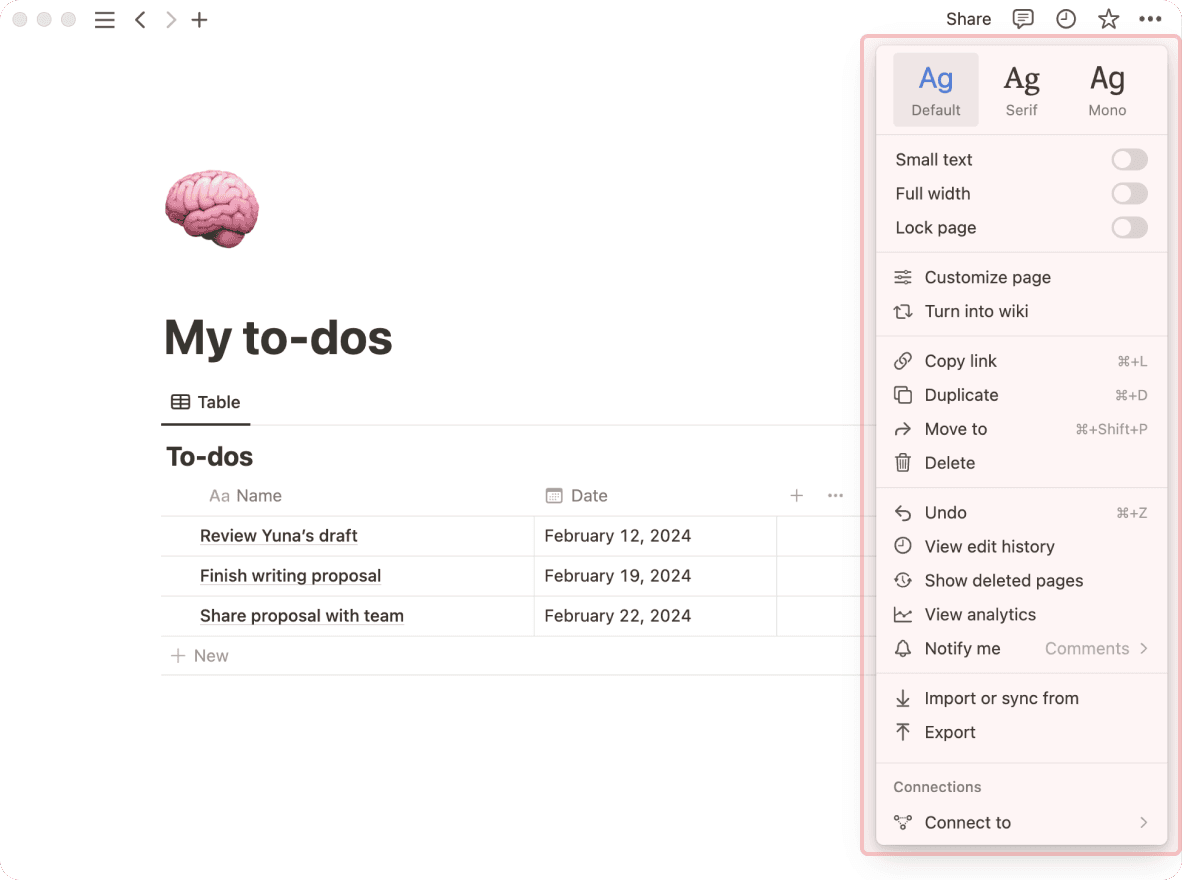
This menu contains many options, including:
Lock page: Turn this on to prevent any edits from being made. This is good for preventing accidental edits on very important pages.Lock database: This option is only available for full page databases. When you turn this on, people can still enter data, but they can’t change views or properties.Customize page: Toggle the visibility of backlink and page comment sections.Move to: This opens up a menu where you can choose any other workspace or page to move the current page into.Updates & analytics: See what changes have been made to a page, how many times the page has been viewed, who created the page, and more.Version history: View past versions of the page going back several days, depending on what plan you're on.Import or sync from: You can add documents and data from a number of other apps (Evernote, Trello, Google Docs, etc.) to the page.Export: Download the page as a file to your computer. Databases get saved as CSV files, while non-database pages get saved as Markdown files. You can also export your page or database as PDF or HTML.
A workspace operates slightly differently if you're using it with a team than if you're using it on your own:
In personal workspaces, newly created pages will be private by default unless they're explicitly shared.
Sidebar organization under the
Teamspacesection is also viewable by all members. The page arrangement will look the same to everyone, although individuals can toggle different pages open or closed without affecting everyone's view.On Notion's Plus, Business, or Enterprise Plan, there are members and admins with different levels of permission. Learn more about sharing and permissions here →
Pertanyaan Umum
Bisakah saya beralih antar ruang kerja yang dikaitkan dengan alamat email yang berbeda?
Bisakah saya beralih antar ruang kerja yang dikaitkan dengan alamat email yang berbeda?
Untuk menambahkan ruang kerja Anda dari akun email lain, gunakan tombol Tambahkan akun lain di pengalih ruang kerja di kiri atas jendela Notion Anda, dan ikuti langkah-langkah untuk masuk ke akun Anda yang lain. Selengkapnya tentang ini di sini →
Saya mengeklik tombol Buat atau Gabung Ruang Kerja, tetapi tombol tersebut hanya mengizinkan saya membuat ruang kerja. Bagaimana cara saya bergabung ke ruang kerja?
Saya mengeklik tombol Buat atau Gabung Ruang Kerja, tetapi tombol tersebut hanya mengizinkan saya membuat ruang kerja. Bagaimana cara saya bergabung ke ruang kerja?
Anda hanya dapat bergabung ke ruang kerja melalui tombol Buat atau Gabung Ruang Kerja jika pengaturan Domain Email yang Diizinkan diaktifkan di ruang kerja tersebut, yang memungkinkan pengguna dengan domain email Anda bergabung ke ruang kerja secara otomatis.
Untuk bergabung ke ruang kerja, Anda harus meminta admin dari ruang kerja tersebut mengirimkan undangan kepada Anda.
Untuk menambahkan ruang kerja Anda dari akun email lain, gunakan tombol Tambahkan akun lain di pengalih ruang kerja di kiri atas jendela Notion Anda, dan ikuti langkah-langkah untuk masuk ke akun Anda yang lain. Selengkapnya tentang ini di sini →
Bilah sisi saya tidak memiliki bagian apa pun. Bagaimana cara mengaktifkannya?
Bilah sisi saya tidak memiliki bagian apa pun. Bagaimana cara mengaktifkannya?
Bagian bilah sisi mencerminkan pengaturan berbagi akun Anda. Jika Anda memiliki lebih dari satu orang di ruang kerja Anda, bagian Ruang tim akan muncul di bilah sisi untuk pekerjaan kolaboratif Anda dengan orang tersebut, dan bagian Pribadi tersedia untuk halaman pribadi Anda yang hanya terlihat oleh Anda.
Saat saya berlangganan Paket Plus, apakah paket tersebut mencakup semua ruang kerja saya?
Saat saya berlangganan Paket Plus, apakah paket tersebut mencakup semua ruang kerja saya?
Paket berbayar hanya berlaku untuk satu ruang kerja, dan tidak mencakup keseluruhan akun. Ruang kerja sepenuhnya terpisah, jadi Anda tidak akan dapat menautkan konten apa pun di antaranya.
Kami menyarankan untuk menggunakan sesedikit mungkin ruang kerja, dan memanfaatkan halaman tingkat atas di bilah sisi Anda agar tetap teratur.
Bagaimana cara saya memigrasikan semua konten Notion saya ke ruang kerja yang berbeda?
Bagaimana cara saya memigrasikan semua konten Notion saya ke ruang kerja yang berbeda?
Catatan: Konten apa pun yang dimigrasikan akan diduplikasi ke ruang kerja baru dan halaman-halaman ini terkadang mengalami masalah. Untuk informasi lebih lanjut, klik di sini.
Untuk memindahkan konten Anda dari satu ruang kerja ke ruang kerja lain yang terkait dengan akun yang sama, klik ••• di sebelah setiap halaman tingkat atas di bilah sisi Anda (atau klik kanan) dan pilih Pindahkan ke. Di bagian bawah menu pindahkan, Anda akan melihat menu tarik-turun untuk memilih ruang kerja yang berbeda.
Saat Anda memindahkan halaman tingkat atas, semua sub-halaman mereka akan ikut serta. Halaman-halaman tersebut akan muncul di bagian Pribadi tetapi dapat dipindahkan ke mana pun Anda ingin meletakkannya.
Bagaimana jika saya tidak sengaja menghapus sesuatu secara permanen? Apakah ada cara untuk mengembalikannya?
Bagaimana jika saya tidak sengaja menghapus sesuatu secara permanen? Apakah ada cara untuk mengembalikannya?
Jika Anda tidak sengaja menghapus halaman, ruang kerja, atau bahkan seluruh akun Anda, kami dapat membantu! Kecelakaan bisa terjadi 😅 Cukup kirimkan pesan kepada kami di dalam aplikasi dengan mengeklik ? di bagian bawah bilah sisi Anda, atau kirim email kepada kami di [email protected].
Kami menyimpan cadangan database kami, yang memungkinkan kami memulihkan snapshot konten Anda dalam 30 hari terakhir jika Anda membutuhkannya.
Bagaimana cara keluar dari akun Notion saya?
Bagaimana cara keluar dari akun Notion saya?
Klik nama ruang kerja Anda saat ini di bagian paling kiri atas bilah sisi Anda. Gulir ke bawah, dan Anda akan melihat opsi untuk log keluar di samping alamat email Anda.