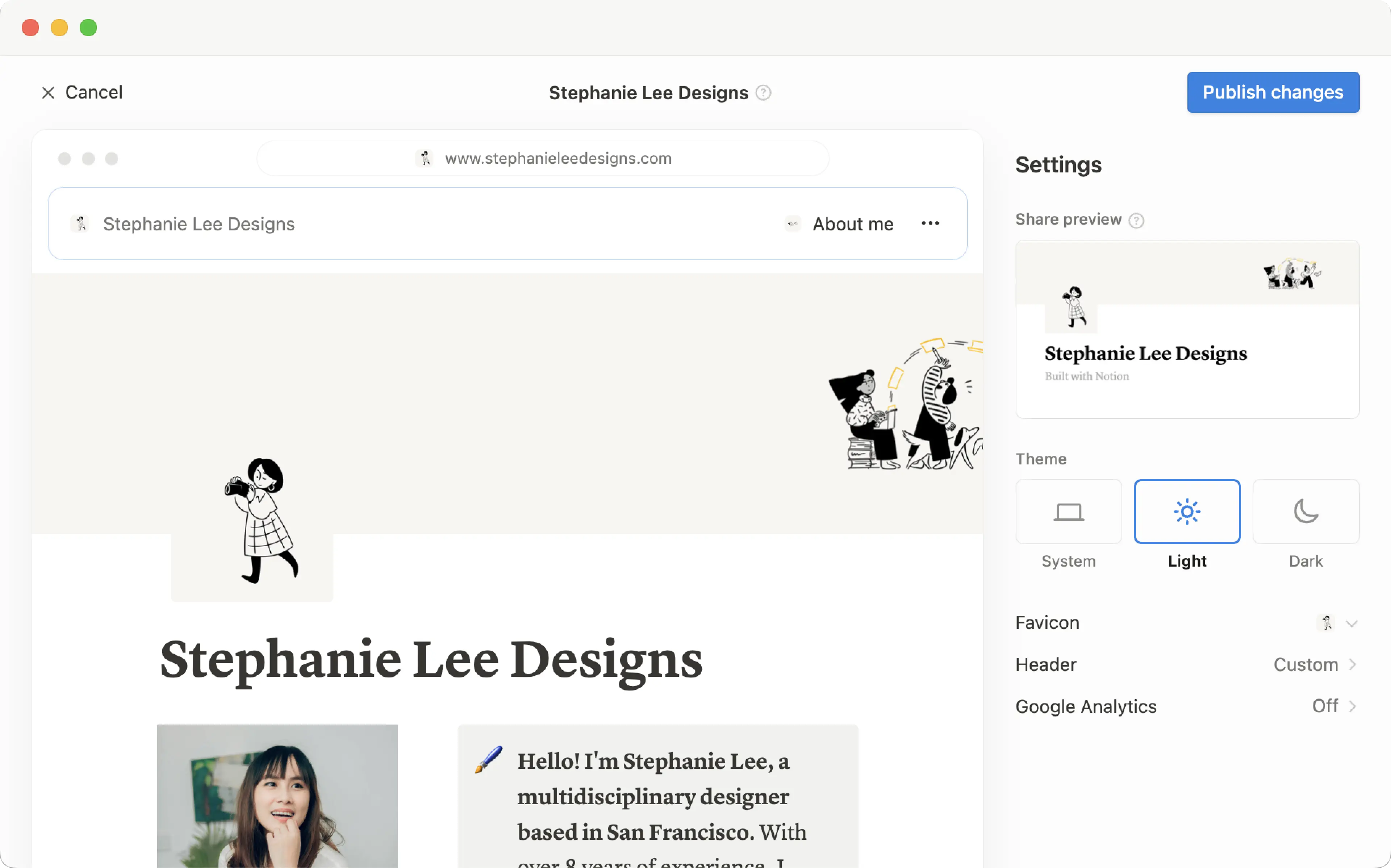
Publicer et Notion-websted
Hov! Det ser ud til, at din reklameblokker forhindrer videoen i at blive afspillet.
Se den på YouTube i stedet

Enhver side, du opretter i Notion, kan laves om til et flot Notion-websted med blot et klik. Publicer en blog, et CV eller en portefølje, et jobopslag, en landingsside — mulighederne er lige så brede som internettet 🪄
Gå til Ofte stillede spørgsmålMed Notion-websteder kan du:
Udgiv et ubegrænset antal sider på nettet.
Hvis du har et betalt abonnement, låser du også op for yderligere tilpasning af dit Notion-websted, hvilket inkluderer søgemaskineoptimering, temaer, integration med Google Analytics og mere. Du får også mulighed for at købe en tilføjelse til at bruge dine eksisterende brugerdefinerede domæner med Notion-websteder og mere.
Få mere at vide om Notion-webstedets tilgængelighed og priser her →

Note:
Making a Notion page public via Notion Sites is different from making a Notion page public using the
Anyone on the web with linksetting in a page’sSharemenu. Learn more about this general access setting here →Workspace owners on the Enterprise Plan can choose to prevent Notion Sites from being published. Learn how here →
Sådan publicerer du et Notion-websted:
Åbn den side, du vil publicere, og vælg
Deløverst.Åbn fanen
Publicer.Vælg
Publicer.
Vælg Vis site for at se dit Notion-websted live på nettet! Når du foretager ændringer i indholdet på en publiceret Notion-side, opdateres webstedet automatisk.
Gør dit Notion-websted indlejrbart
Indlejr alle dine publicerede Notion-sider—formularer, diagrammer, databaser og mere—på dine hjemmesider, der ikke er Notion.
På en publiceret side skal du klikke på
Integrer denne side.I indlejringsmodulet skal du klikke på
Kopiér denne kode.Du kan eventuelt slå
Vis sidetiteltil eller fra.
Indsæt koden i din hjemmesides HTML-fil. Hvis du bruger en hjemmesidebygger, vil dette sandsynligvis være en kodeblok.

Note: Publishing a Notion page to the web means all of its subpages will be published too. Make sure all your page’s subpages are good to go before you hit publish!

Learn how to build a beautiful, ready-to-publish Notion Site here →
Når dit Notion-websted er udgivet, skal du åbne den udgivne side i Notion og vælge Del øverst → Udgiv. Fra denne menu kan du:
Kopiér link til dit aktive Notion-websted, så du kan dele det med andre.
Hvis du har et betalt abonnement, kan du tilpasse dit Notion-websteds slug, som er stinavnet, der følger efter dit domæne. For eksempel i webadressen
notion.site/my-slugvillemy-slugvære sluggen. For at tilpasse dette skal du klikke på din nuværende slug, indtaste din foretrukne slug og klikke påGem.Slugs kan bestå af bogstaver, tal og bindestreger. Ingen andre specialtegn er tilladt.
Din slug kan indeholde op til 60 tegn.
Forsider kan ikke have slugs.
Du skal opsætte slugs manuelt for hvert af dine Notion-websteder. En bestemt sides slug vil ikke automatisk gælde for nogen undersider.
Du kan ikke bruge den samme slug på tværs af sider i et arbejdsområde, selvom disse sider er udgivet på forskellige domæner.

Important: Once you permanently delete a published page, its slug cannot be reused. If you think you might want to use the same slug again, update the slug before deleting the page.
Vælg
Webstedstilpasningfor at tilpasse dit Notion-websted yderligere. Lær mere om, hvordan du tilpasser dit Notion-websted i denne artikel →Vælg
Søgemaskineindekseringog slåFindes på nettettil for at gøre dit websted søgbart på nettet. Hvis du har et betalt abonnement, kan du også redigere din linktitel og beskrivelse til søgemaskineoptimering.Slå
Dupliker som skabelontil for at give dine webstedsbesøgende mulighed for at duplikere dit Notion-websted som en Notion-side i deres eget arbejdsområde.Vælg
Integrer denne sideog slåVis sidetiteltil, eller vælgKopiér kodefor at indlejre dit Notion-websted på en anden side.Administrer alle dine Notion-websteder ved at vælge
Alle publicerede websteder.
Note:
Notion Sites can take up to four weeks to be indexed and appear in search results.
If you choose to sell templates directly on Marketplace, your existing paid templates (at their existing Notion Sites links) will be made available for purchase directly on Marketplace. This means that users who access your templates' existing Notion Sites links via a third-party platform won’t be able to duplicate your templates. Make sure to duplicate your template and set it up at a new Notion Site link that you can use for your listing on the third-party platform.
Note: When you publish a Notion page to the web or set sharing access for a Notion page to Anyone on the web with link, the webpage's metadata will include the names, profile photos, and email addresses associated with any Notion users that have contributed to the page.
Når du publicerer et Notion-websted:
Alle på nettet kan se det.
Undersider udgives også som standard sammen med alle deres undersider. Du kan begrænse tilladelser for undersider for at skjule dem fra offentlig visning!
Hvis dit Notion-websted indeholder en database, kan seere skifte mellem visninger og åbne siderne deri.
Afhængigt af de indstillinger, du har slået til, og de tilpasninger, du foretager, kan seere også duplikere eller søge på dit Notion-websted.
Når du foretager ændringer i indholdet på din Notion-side, opdateres webstedet automatisk.
If you’re on a paid plan, you can do even more to tailor the experience for your Site’s visitors! Learn how in this article →
Even if your Notion Site has been unpublished, it’s possible your page’s general access settings have been set to Anyone on the web with link, which allows people who have the link to your page to access it.
To ensure your page’s contents aren’t shared publicly, turn this setting off by clicking Share at the top of your Notion page, opening the dropdown next to Anyone on the web with link, and clicking Remove.
Sådan fjerner du dit Notion-websted fra internettet:
Åbn den side, du vil afpublicere, og vælg
Deløverst.Åbn fanen
Publicer.Vælg
Afpublicer.
Hvis du er arbejdsområdeejer på et Enterprise-abonnement, kan du forhindre arbejdsområdemedlemmer i at publicere Notion-websteder. For at gøre dette kan arbejdsområdeejere:
Gå til
Indstillinger→Sikkerhed.I fanen
Sikkerhedskal du slåDeaktiver publicering af websteder, formularer og offentlige linkstil.
Alle Notion-websteder, der allerede er live på internettet, bliver taget ned, når du aktiverer denne indstilling. Bemærk, at aktivering af denne indstilling også vil forhindre medlemmer af dit arbejdsområde i at dele formularer på internettet.

Ofte stillede spørgsmål
Does Notion support custom domains?
Does Notion support custom domains?
Learn how to claim a notion.site domain or connect a custom domain to your Notion Site here →
Can you link to a specific section of a page?
Can you link to a specific section of a page?
You can use a table of contents in your public page to create anchor links to its headings.
If I change my workspace domain name, will my public page URLs still work?
If I change my workspace domain name, will my public page URLs still work?
If you change your workspace domain, any existing links starting with the previous domain will no longer work. You'll need to share the new link. To find the new link, open the published page in Notion and select Share at the top → Publish. Find the URL at the top and select 🔗 next to it to copy it.
I shared my public page URL but it takes people to a page with a "Continue to external site by following the link below" error message. What did I do wrong?
I shared my public page URL but it takes people to a page with a "Continue to external site by following the link below" error message. What did I do wrong?
Make sure you’ve shared the link to the published page, and not the version of the page in your Notion workspace! The link should begin with your Notion workspace domain name. To find it, open the published page in Notion and select Share at the top → Publish. Find the URL at the top and select 🔗 next to it to copy it.
Can I password protect a page?
Can I password protect a page?
Unfortunately, not at the moment. If the person you want to share a page with has a Notion account, you can share your page privately by selecting Invite a person in the Share menu at the top of a page.