Publicera en Notion-webbplats
Hoppsan! Det verkar som om din annonsblockerare hindrar videon från att spelas upp.
Titta på den på YouTube

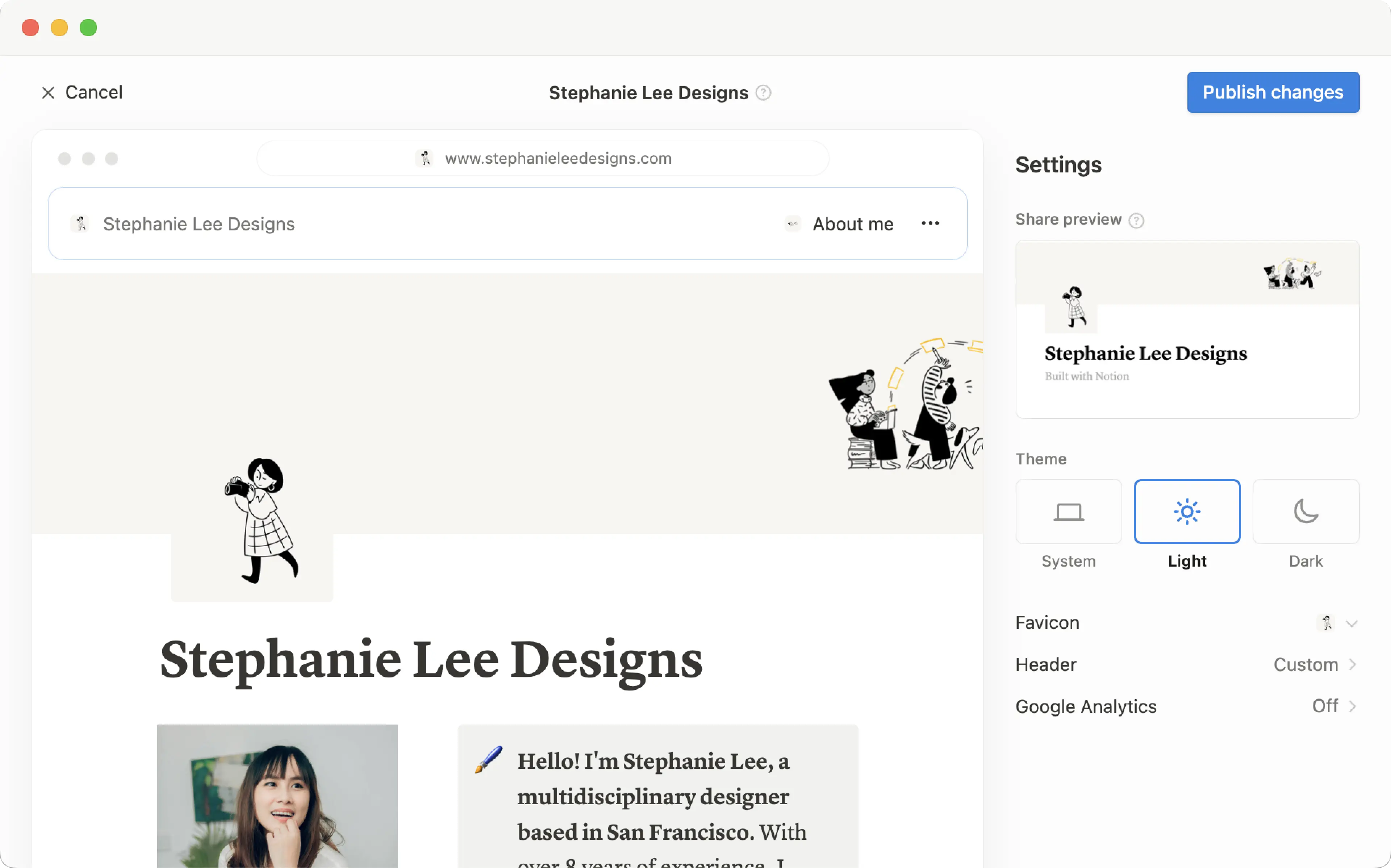
Alla sidor du skapar i Notion kan förvandlas till en snygg Notion-webbplats med bara ett klick. Publicera en blogg, ett CV eller en portfölj, en jobbannons, en målsida – möjligheterna är lika stora som webben själv 🪄
Gå till vanliga frågorMed Notion-webbplatser kan du:
Publicera ett obegränsat antal sidor på webben.
Om du har ett betalt abonnemang låser du även upp ytterligare anpassning för din Notion-webbplats, vilket inkluderar sökmotoroptimering, teman, integrering med Google Analytics med mera. Du har även möjlighet att köpa ett tillägg för att använda dina befintliga domäner med Notion-webbplatser och mer.
Läs mer om tillgänglighet och prissättning för Notion-webbplatser här →

Note:
Making a Notion page public via Notion Sites is different from making a Notion page public using the
Anyone on the web with linksetting in a page’sSharemenu. Learn more about this general access setting here →Workspace owners on the Enterprise Plan can choose to prevent Notion Sites from being published. Learn how here →
Så här publicerar du en Notion-webbplats:
Öppna sidan du vill publicera och välj
Delahögst upp.Öppna fliken
Publicera.Välj
Publicera.
Välj Visa webbplats för att se din Notion-webbplats live på webben! När du gör ändringar i innehållet på en publicerad Notion-sida uppdateras webbplatsen automatiskt.
Gör din webbplats inbäddningsbar
Bädda in valfri publicerad Notion-sida – formulär, diagram, databaser med mera – på webbplatser som inte är Notion.
På en publicerad sida, klicka på
Bädda in den här sidan.I dialogrutan för inbäddning, klicka på
Kopiera den här koden.Du kan även välja att aktivera
Visa sidtitel.
Klistra in koden i din webbplats HTML-fil. Om du använder ett verktyg för att bygga webbplatser är detta troligen ett kodblock.

Note: Publishing a Notion page to the web means all of its subpages will be published too. Make sure all your page’s subpages are good to go before you hit publish!

Learn how to build a beautiful, ready-to-publish Notion Site here →
När din Notion-webbplats har publicerats öppnar du den publicerade sidan i Notion och väljer Dela högst upp → Publicera. Från den här menyn kan du:
Kopiera länken till din Notion-webbplats som är live, så att du kan dela den med andra.
Om du har en betalplan kan du anpassa slug för din Notion-webbplats, vilket är sökvägen som följer efter din domän. Till exempel, i URL:en
notion.site/my-slug, skullemy-slugvara slug. För att anpassa detta klickar du på din nuvarande slug, anger din föredragna slug och klickar påSpara.Slugs kan bestå av bokstäver, siffror och bindestreck. Inga andra specialtecken är tillåtna.
Din slug kan innehålla upp till 60 tecken.
Startsidor kan inte ha slugs.
Du måste ställa in slugs manuellt för var och en av dina Notion-webbplatser. En viss sidas slug tillämpas inte automatiskt på några undersidor.
Du kan inte använda samma slug för olika sidor i en arbetsyta, även om dessa sidor publiceras på olika domäner.

Important: Once you permanently delete a published page, its slug cannot be reused. If you think you might want to use the same slug again, update the slug before deleting the page.
Välj
Webbplatsanpassningför att ytterligare anpassa din webbplats. Läs mer om att anpassa din webbplats i den här artikeln →Välj
Sökmotorindexeringoch aktiveraSökbar på webbenför att göra din webbplats sökbar på webben. Om du har en betalplan kan du även redigera länkens titel och beskrivning för sökmotoroptimering.Aktivera
Duplicera som mallför att låta dina webbplatsbesökare duplicera din Notion-webbplats som en Notion-sida i sin egen arbetsyta.Välj
Bädda in den här sidanoch aktiveraVisa sidtiteleller väljKopiera kodför att bädda in din Notion-webbplats på en annan sida.Hantera alla dina webbplatser genom att välja
Alla publicerade webbplatser.
Note:
Notion Sites can take up to four weeks to be indexed and appear in search results.
If you choose to sell templates directly on Marketplace, your existing paid templates (at their existing Notion Sites links) will be made available for purchase directly on Marketplace. This means that users who access your templates' existing Notion Sites links via a third-party platform won’t be able to duplicate your templates. Make sure to duplicate your template and set it up at a new Notion Site link that you can use for your listing on the third-party platform.
Note: When you publish a Notion page to the web or set sharing access for a Notion page to Anyone on the web with link, the webpage's metadata will include the names, profile photos, and email addresses associated with any Notion users that have contributed to the page.
När du publicerar en Notion-webbplats:
Vem som helst på webben kan se den.
Undersidor publiceras också som standard, tillsammans med alla deras undersidor. Du kan begränsa behörigheter för undersidor för att dölja dem från allmänheten!
Om din Notion-webbplats innehåller en databas kan besökare växla mellan vyer och öppna sidorna inuti.
Beroende på vilka inställningar du har aktiverat och vilka anpassningar du gör, kan besökare även kopiera eller snabbsöka på din Notion-webbplats.
När du gör ändringar i innehållet på din Notion-sida uppdateras Notion-webbplatsen automatiskt.
If you’re on a paid plan, you can do even more to tailor the experience for your Site’s visitors! Learn how in this article →
Even if your Notion Site has been unpublished, it’s possible your page’s general access settings have been set to Anyone on the web with link, which allows people who have the link to your page to access it.
To ensure your page’s contents aren’t shared publicly, turn this setting off by clicking Share at the top of your Notion page, opening the dropdown next to Anyone on the web with link, and clicking Remove.
För att ta bort din Notion-webbplats från webben:
Öppna sidan du vill avpublicera och välj
Delahögst upp.Öppna
Publicera-fliken.Välj
Avpublicera.
Om du är arbetsyteägare med ett Enterprise-abonnemang kan du förhindra att arbetsytans medlemmar publicerar Notion-webbplatser. För att göra detta kan arbetsyteägare:
Gå till
Inställningar→Säkerhet.På fliken
Säkerhet, växla påInaktivera publicering av webbplatser, formulär och offentliga länkar.
Alla webbplatser som redan är live på webben kommer att tas ner när du aktiverar den här inställningen. Observera att aktivering av den här inställningen även förhindrar medlemmar i din arbetsyta från att dela formulär på webben.

Vanliga frågor
Does Notion support custom domains?
Does Notion support custom domains?
Learn how to claim a notion.site domain or connect a custom domain to your Notion Site here →
Can you link to a specific section of a page?
Can you link to a specific section of a page?
You can use a table of contents in your public page to create anchor links to its headings.
If I change my workspace domain name, will my public page URLs still work?
If I change my workspace domain name, will my public page URLs still work?
If you change your workspace domain, any existing links starting with the previous domain will no longer work. You'll need to share the new link. To find the new link, open the published page in Notion and select Share at the top → Publish. Find the URL at the top and select 🔗 next to it to copy it.
I shared my public page URL but it takes people to a page with a "Continue to external site by following the link below" error message. What did I do wrong?
I shared my public page URL but it takes people to a page with a "Continue to external site by following the link below" error message. What did I do wrong?
Make sure you’ve shared the link to the published page, and not the version of the page in your Notion workspace! The link should begin with your Notion workspace domain name. To find it, open the published page in Notion and select Share at the top → Publish. Find the URL at the top and select 🔗 next to it to copy it.
Can I password protect a page?
Can I password protect a page?
Unfortunately, not at the moment. If the person you want to share a page with has a Notion account, you can share your page privately by selecting Invite a person in the Share menu at the top of a page.