פרסום Notion Sites
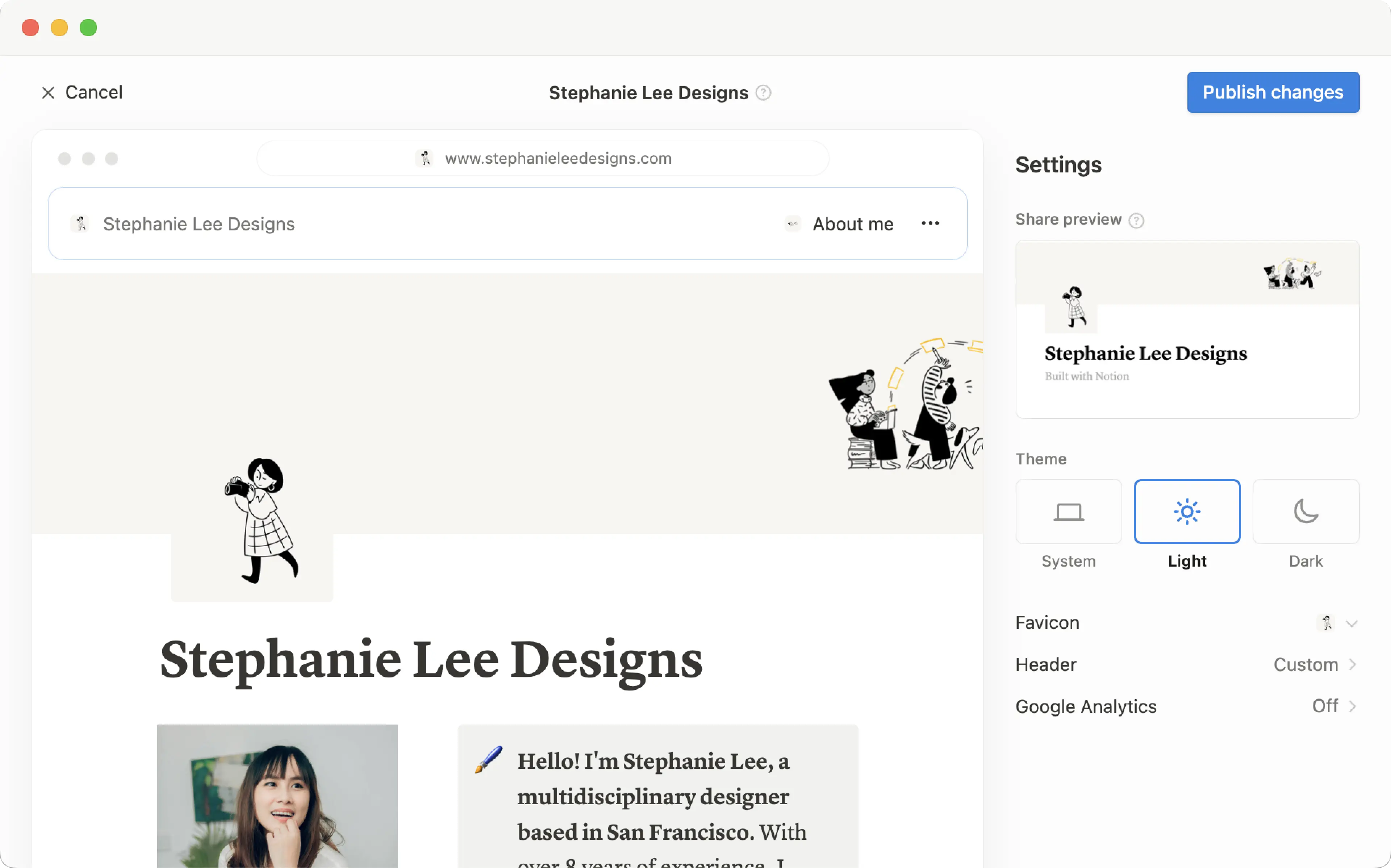
כל דף שאתה בונה ב-Notion יכול להפוך ל-Notion Sites יפהפיים בלחיצה אחת בלבד. ניתן לפרסם בלוג, קורות חיים או תיק עבודות, מודעת דרושים, דף נחיתה — האפשרויות רחבות כמו האינטרנט עצמו 🪄
מעבר לשאלות הנפוצותעם Notion Sites, באפשרותך:
פרסום מספר בלתי מוגבל של דפים באינטרנט.
אם יש לך תוכנית בתשלום, תפתח גם התאמה אישית נוספת לאתר שלך הכוללת אופטימיזציה למנועי חיפוש, ערכות נושא, אינטגרציה עם Google Analytics ועוד. כמו כן, תהיה לך אפשרות לרכוש תוסף כדי להשתמש בדומיינים מותאמים אישית קיימים עם אתרים, ועוד.
למידע נוסף על זמינות תכונות והתמחור של Notion Sites כאן →

Note:
Making a Notion page public via Notion Sites is different from making a Notion page public using the
Anyone on the web with linksetting in a page’sSharemenu. Learn more about this general access setting here →Workspace owners on the Enterprise Plan can choose to prevent Notion Sites from being published. Learn how here →
כדי לפרסם Notion Sites:
פתח את הדף שברצונך לפרסם ובחר ב-
שיתוףבחלק העליון.פתח את הכרטיסייה
פרסום.בחר ב-
פרסום.
בחר ב-צפייה באתר כדי לראות את Notion Sites שלך חיות ברשת! ככל שתבצע שינויים בתוכן בדף Notion שפורסם, Notion Sites יתעדכנו באופן אוטומטי.
הפוך את Notion Sites שלך לניתן להטמעה
הטמע כל אחד מדפי ה-Notion שפרסמת—טפסים, תרשימים, מאגרי ידע ועוד—באתרי אינטרנט שאינם של Notion.
בדף שפורסם, לחץ על
הטמע דף זה.בחלון ההטמעה, לחץ על
העתק קוד זה.באפשרותך להפעיל או לכבות את
הצג כותרת דף.
הדבק את הקוד בקובץ ה-HTML של אתר האינטרנט שלך; אם אתה משתמש בבונה אתרים, כנראה שמדובר בבלוק קוד.

Note: Publishing a Notion page to the web means all of its subpages will be published too. Make sure all your page’s subpages are good to go before you hit publish!

Learn how to build a beautiful, ready-to-publish Notion Site here →
לאחר ש-Notion Sites שלכם יפורסמו, פתח את הדף שפורסם ב-Notion ובחר ב-שיתוף בחלק העליון → פרסום. מתפריט זה, ניתן:
העתק את הקישור ל-Notion Sites החי שלך
אם יש לך תוכנית בתשלום, באפשרותך להתאים אישית את ה-slug של Notion Sites שלך, שהוא הנתיב המופיע לאחר הדומיין שלך. לדוגמה, בכתובת ה-URL
notion.site/my-slug,my-slugיהיה ה-slug. כדי להתאים זאת אישית, לחץ על ה-slug הנוכחי, הזן את ה-slug המועדף ולחץ עלשמירה.slugs יכולים להיות מורכבים מאותיות, מספרים ומקפים. תווים מיוחדים אחרים אינם מורשים.
ה-slug שלך יכול להכיל עד 60 תווים.
לדפי בית לא יכולים להיות slugs.
תצטרכו להגדיר slugs באופן ידני עבור כל אחד מ-Notion Sites שלכם. ה-slug של דף מסוים לא יחול באופן אוטומטי על דפי משנה.
אינך יכול להשתמש באותו slug בדפים שונים בסביבת עבודה, גם אם דפים אלו פורסמו בדומיינים שונים.

Important: Once you permanently delete a published page, its slug cannot be reused. If you think you might want to use the same slug again, update the slug before deleting the page.
בחר ב-
התאמה אישית של Notion Sitesכדי להתאים אישית את Notion Sites שלכם עוד יותר.בחר ב-
אינדוקס במנועי חיפושוהפעל אתניתן לגילוי באינטרנטכדי להפוך את Notion Sites שלכם לניתן לחיפוש באינטרנט. אם יש לך תוכנית בתשלום, תוכל גם לערוך את כותרת הקישור והתיאור לצורך אופטימיזציה למנועי חיפוש.הפעל את
שכפול כתבניתכדי לאפשר למבקרים ב-Notion Sites שלכם לשכפל את Notion Sites שלכם.בחר ב-
הטמעת דף זהוהפעל אתהצגת כותרת הדףאו בחר ב-העתקת קודכדי להטמיע את Notion Sites שלכם בדף אחר.נהל את כל Notion Sites שלכם על ידי בחירה ב-
כל Notion Sites שפורסמו.
Note:
Notion Sites can take up to four weeks to be indexed and appear in search results.
If you choose to sell templates directly on Marketplace, your existing paid templates (at their existing Notion Sites links) will be made available for purchase directly on Marketplace. This means that users who access your templates' existing Notion Sites links via a third-party platform won’t be able to duplicate your templates. Make sure to duplicate your template and set it up at a new Notion Site link that you can use for your listing on the third-party platform.
Note: When you publish a Notion page to the web or set sharing access for a Notion page to Anyone on the web with link, the webpage's metadata will include the names, profile photos, and email addresses associated with any Notion users that have contributed to the page.
כאשר אתם מפרסמים Notion Sites:
כל אחד באינטרנט יכול לצפות בו.
דפי משנה מתפרסמים גם הם כברירת מחדל, יחד עם כל דפי המשנה שלהם. באפשרותך להגביל הרשאות של דפי משנה כדי להסתיר אותם מהצפייה הציבורית!
אם Notion Sites שלכם כולל מאגר ידע, צופים יכולים לעבור בין תצוגות ולפתוח את הדפים שבתוכו.
בהתאם ל-הגדרות שהפעלת ול-התאמות אישיות שביצעת, צופים יכולים גם לשכפל או לחפש ב-Notion Sites שלכם.
ככל שתבצע שינויים בתוכן בדף Notion, Notion Sites יתעדכנו באופן אוטומטי.
If you’re on a paid plan, you can do even more to tailor the experience for your Site’s visitors! Learn how in this article →
Even if your Notion Site has been unpublished, it’s possible your page’s general access settings have been set to Anyone on the web with link, which allows people who have the link to your page to access it.
To ensure your page’s contents aren’t shared publicly, turn this setting off by clicking Share at the top of your Notion page, opening the dropdown next to Anyone on the web with link, and clicking Remove.
כדי להסיר את Notion Sites שלכם מהאינטרנט:
פתח את הדף שברצונך לבטל את פרסומו ובחר ב-
שיתוףבחלק העליון.פתח את הכרטיסייה
פרסום.בחר ב-
ביטול פרסום.
אם אתה בעל סביבת עבודה בתוכנית Enterprise, באפשרותך למנוע מחברי סביבת העבודה לפרסם אתרי Notion. כדי לעשות זאת, בעלי סביבת עבודה יכולים:
לעבור אל
הגדרות←אבטחה.בכרטיסייה
אבטחה, הפעל אתהשבת פרסום Notion Sites, טפסים וקישורים ציבוריים.
כל Notion Sites שכבר פעילים יוסרו ברגע שתפעיל הגדרה זו. שים לב שהפעלת הגדרה זו תמנע גם מחברי סביבת העבודה שלך לשתף טפסים באינטרנט.

שאלות נפוצות
Does Notion support custom domains?
Does Notion support custom domains?
Learn how to claim a notion.site domain or connect a custom domain to your Notion Site here →
Can you link to a specific section of a page?
Can you link to a specific section of a page?
You can use a table of contents in your public page to create anchor links to its headings.
If I change my workspace domain name, will my public page URLs still work?
If I change my workspace domain name, will my public page URLs still work?
If you change your workspace domain, any existing links starting with the previous domain will no longer work. You'll need to share the new link. To find the new link, open the published page in Notion and select Share at the top → Publish. Find the URL at the top and select 🔗 next to it to copy it.
I shared my public page URL but it takes people to a page with a "Continue to external site by following the link below" error message. What did I do wrong?
I shared my public page URL but it takes people to a page with a "Continue to external site by following the link below" error message. What did I do wrong?
Make sure you’ve shared the link to the published page, and not the version of the page in your Notion workspace! The link should begin with your Notion workspace domain name. To find it, open the published page in Notion and select Share at the top → Publish. Find the URL at the top and select 🔗 next to it to copy it.
Can I password protect a page?
Can I password protect a page?
Unfortunately, not at the moment. If the person you want to share a page with has a Notion account, you can share your page privately by selecting Invite a person in the Share menu at the top of a page.