Link previews
Hov! Det ser ud til, at din reklameblokker forhindrer videoen i at blive afspillet.
Se den på YouTube i stedet

See live, synced visualizations of links from popular platforms right in your workspace — no need to switch between apps or lose context 🔗
Gå til Ofte stillede spørgsmålLink previews allow you to see live, synced visualizations of links directly in Notion. This is currently supported for several platforms:
GitHub | Jira |
Slack | Asana |
Trello | Linear |
Zoom | Figma |
Adobe XD | Dropbox |
OneDrive & Sharepoint | Pitch |
Amplitude | Hex |
GRID | GitLab |
Box | Lucid (Lucidspark and Lucidchart) |
Whimsical | ClickUp |
Zendesk |

Note: Users will need edit access in SharePoint and OneDrive in order to use link previews.

Copy a link from any of the supported platforms. Paste it into Notion and select
Paste as: Preview.The first time that you paste a link from one of these platforms, you'll see a button that asks you to connect to the app.
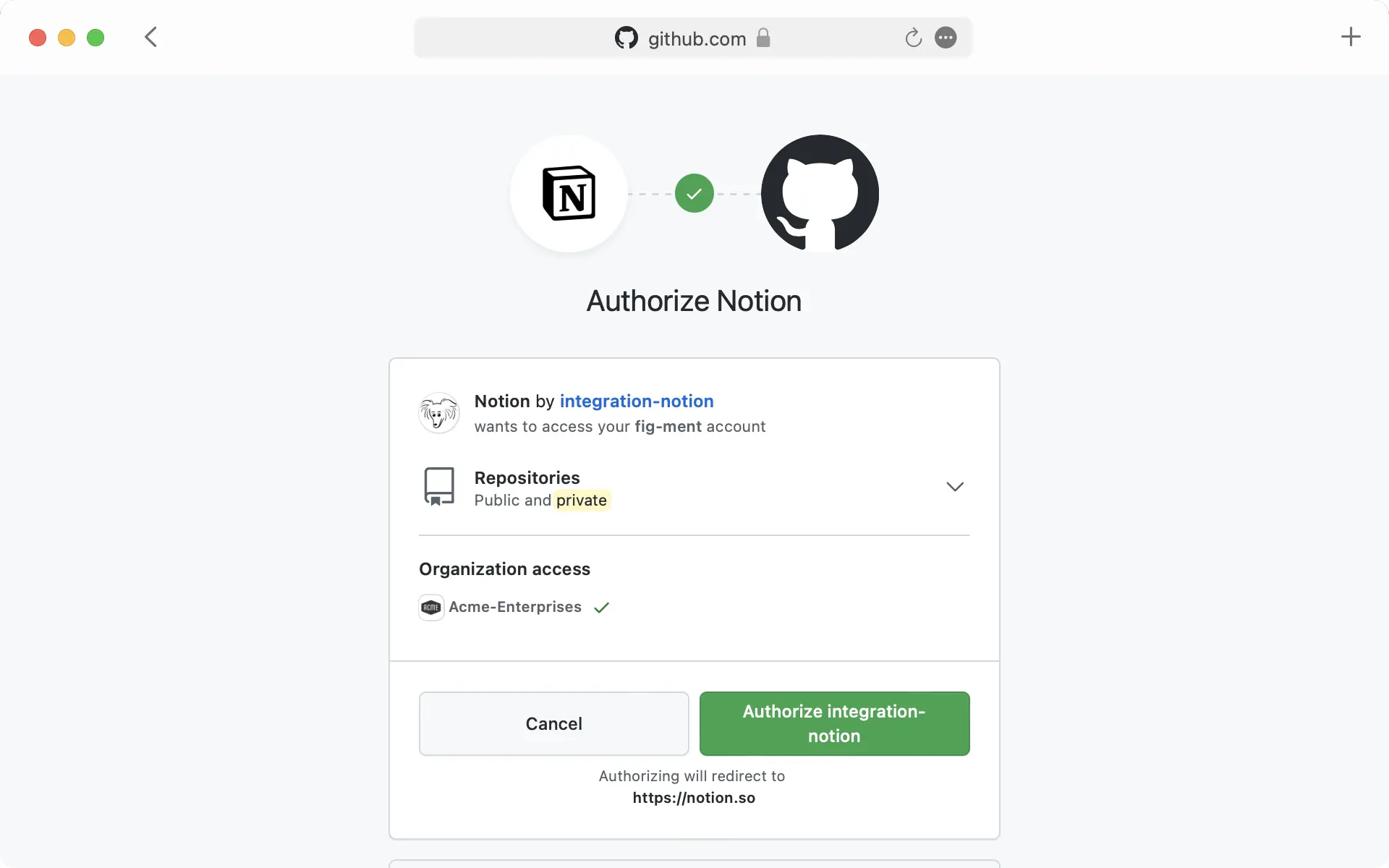
Once you click the button to connect, you'll be redirected to a browser window. Here, the app will ask for authentication and permission to display content in Notion.
When you've authenticated with the app, you'll see a detailed preview of the linked content. This preview updates as changes are made to any relevant fields.
Note: Once you've authenticated a connected app, anyone who can view your Notion page will be able to see corresponding content that you've pasted as a link preview.
In some cases, information will be abstracted (e.g., channel names from Slack private channels and DMs).
In addition to previews, you can also paste links from these platforms as mentions. These provide a more condensed visualization of the content in the link.
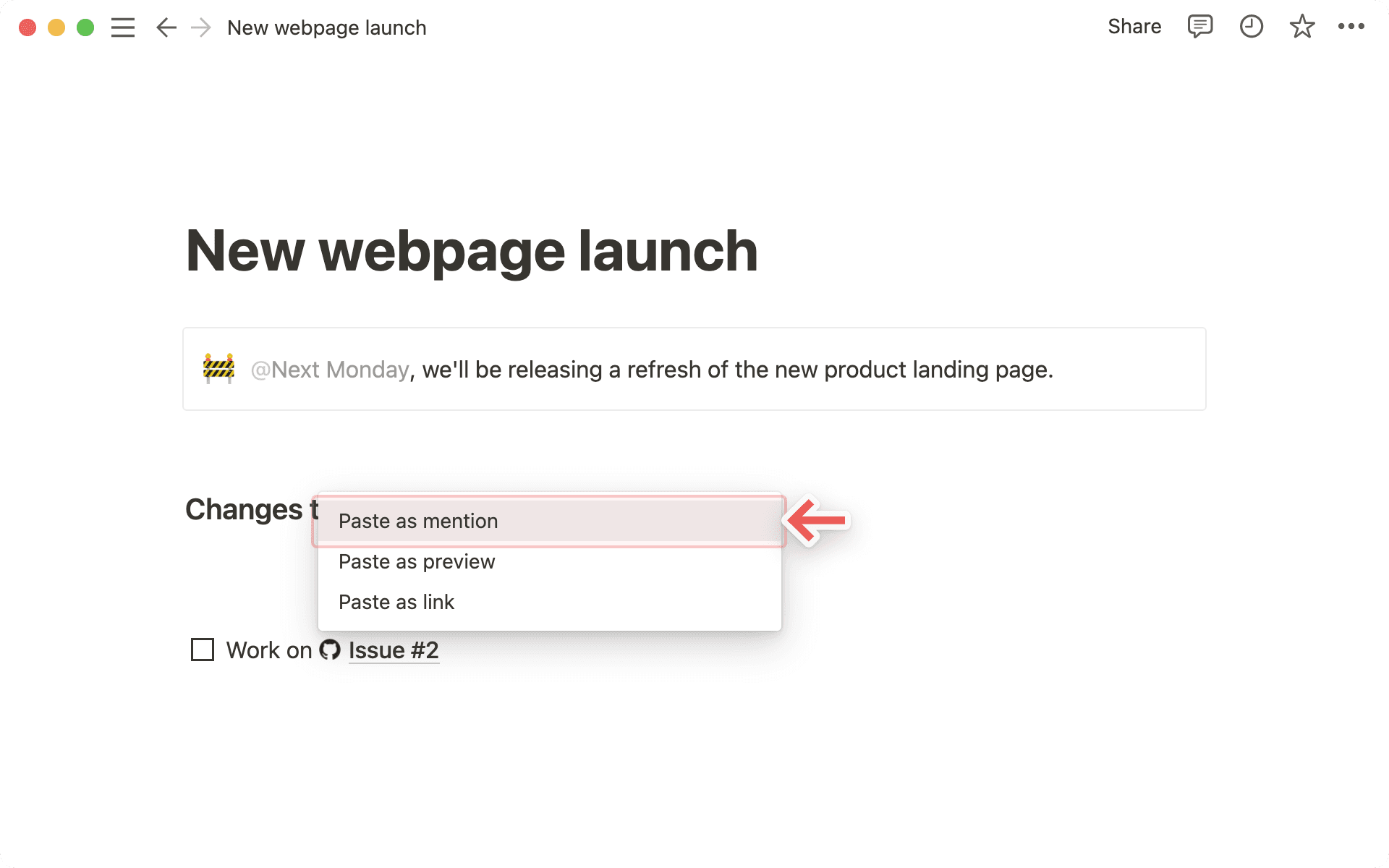
Copy a link from any of the supported platforms. Paste it into Notion and you'll see the option to
Paste as: Mention.Similarly to previews, you'll have to authenticate the app the very first time you paste a corresponding link in Notion. Click the button to open the authentication window and grant the necessary permissions. Afterward, you'll see the link mention pop up!

Tip: You can paste links as mentions directly inline, next to other text!
Ofte stillede spørgsmål
Jeg modtager en "Adgang nægtet" eller "Indhold ikke fundet"-fejl i min Forhåndsvisning af link.
Jeg modtager en "Adgang nægtet" eller "Indhold ikke fundet"-fejl i min Forhåndsvisning af link.
Der er to mulige årsager til dette:
Du har muligvis ikke godkendt den konto, der har adgang. Du kan forbinde flere konti via
Indstillinger→Mine forbindelsereller rullemenuen med fejl.Din organisation har muligvis begrænset adgang til indhold via tredjepartsforbindelser eller IP-adresser. Bekræft venligst dette med din arbejdsområde- eller organisationsadministrator, og bed om at få Notions forbindelse godkendt, hvis det er tilfældet. Her er instruktioner til specifikke forbindelser: GitHub, Jira, Slack, Asana, Trello.
Kan jeg tilføje mere end ét login til en forbindelse til Forhåndsvisning af link?
Kan jeg tilføje mere end ét login til en forbindelse til Forhåndsvisning af link?
Det kan du! Du kan gøre det via Indstillinger → Mine forbindelser. For den ønskede forbindelse skal du vælge "Forbind en anden konto".
Bemærk: Nogle Applikationer understøtter ikke login med flere konti i browseren (f.eks. GitHub), så du skal muligvis logge ud af den konto, der i øjeblikket er logget ind i din browser, for at blive bedt om at logge ind med en anden konto.
Vi bestemmer, hvilken af dine konti der skal bruges til at få visning af givne ressourcer, og viser en fejl, hvis ingen af dem lykkes.
Jeg modtager en generel "Kan ikke indlæse Forhåndsvisning af link"-fejl i min Forhåndsvisning af link.
Jeg modtager en generel "Kan ikke indlæse Forhåndsvisning af link"-fejl i min Forhåndsvisning af link.
Gennemgå disse trin for at forsøge at løse problemet.
Bekræft, at du er logget ind med den korrekte konto til ressourcen.
Bekræft, at der ikke er nogen adgangsbegrænsninger for din organisation.
Prøv at udvide linket igen.
Endelig, hvis intet andet virker, så Kontakt Support! Vi kan desværre ikke hjælpe med at løse fejl relateret til Access denied eller Content not found. Angiv venligst følgende oplysninger, når du kontakter support:
Forbindelsen du forsøger at bruge
Fejlmeddelelse og kode
URL du forsøger at forhåndsvise (hvis muligt)